Nodes
Nodes are used to represent all forms of computation in Noise Pilot. Nodes are connected by dragging edges between input and output handles.
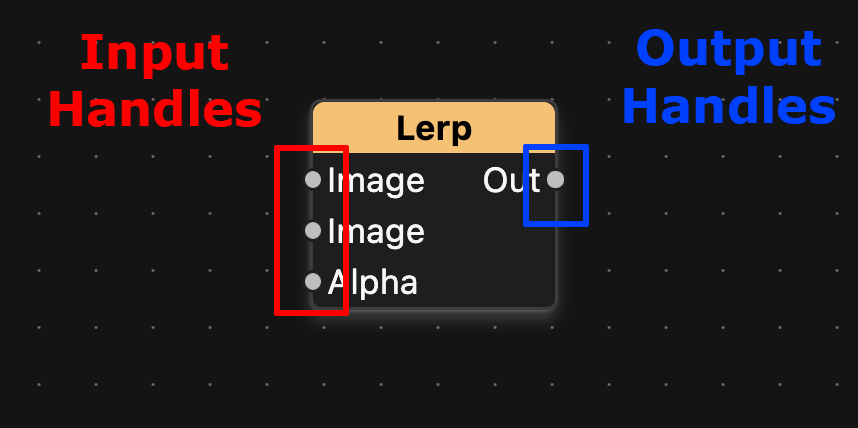
The data that a node outputs is sent to the input of whatever handle it is connected to.
Some handles have types, and handles can only be connected if they share a type. For example, if a node outputs an image, it can only be connected to handles that accept images.
| Handle Types |
|---|
| Image |
| Prompt |
| Constant |
| Any |
Any is a special handle type that will accept any type of input. If a node has input handles with type Any, they usually output the same type that is passed in.
Data
Data nodes are used for managing and inputting data into Noise Pilot.
Gaussian Noise
| Inputs | Outputs |
|---|---|
Out: Image |
Generates an Image of pure random noise. This is often used as a starting point for diffusion, or to be blended into images when doing partial diffusion.

Constant
| Inputs | Outputs |
|---|---|
Out: Constant |
Represents numbers. These will generally be whole numbers, not decimal.
Prompt
| Inputs | Outputs |
|---|---|
Out: Prompt |
Prompts are entered as strings of text.
Parameters
Parameter nodes are only useful when used with groups. The groups page contains a description of the Parameter (Input) and Parameter (Output) nodes.
Math
Math nodes allow you to do math operations on data. Most of the time math nodes accept any type of input. Some combination of input data types might result in errors.
Add
| Inputs | Outputs |
|---|---|
In 1: Any | Out: Any |
In 2: Any |
Adds the two inputs.
Subtract
| Inputs | Outputs |
|---|---|
In 1: Any | Out: Any |
In 2: Any |
Subtracts In 2 from In 1.
Out = In_1 - In_2
Multiply
| Inputs | Outputs |
|---|---|
In 1: Any | Out: Any |
In 2: Any |
Multiplies the two inputs.
Out = In_1 * In_2
Divide
| Inputs | Outputs |
|---|---|
In 1: Any | Out: Any |
In 2: Any |
Divides In 1 by In 2.
Out = In_1 / In_2
Square Root
| Inputs | Outputs |
|---|---|
In: Any | Out: Any |
Takes the square root of the input.
Out = sqrt(In)
If an image is passed in, the square root of each pixel of the image is taken.
Operations
Operations represent image manipulation functions. These all only operate on image data.
Vertical Flip
| Inputs | Outputs |
|---|---|
In: Image | Out: Image |
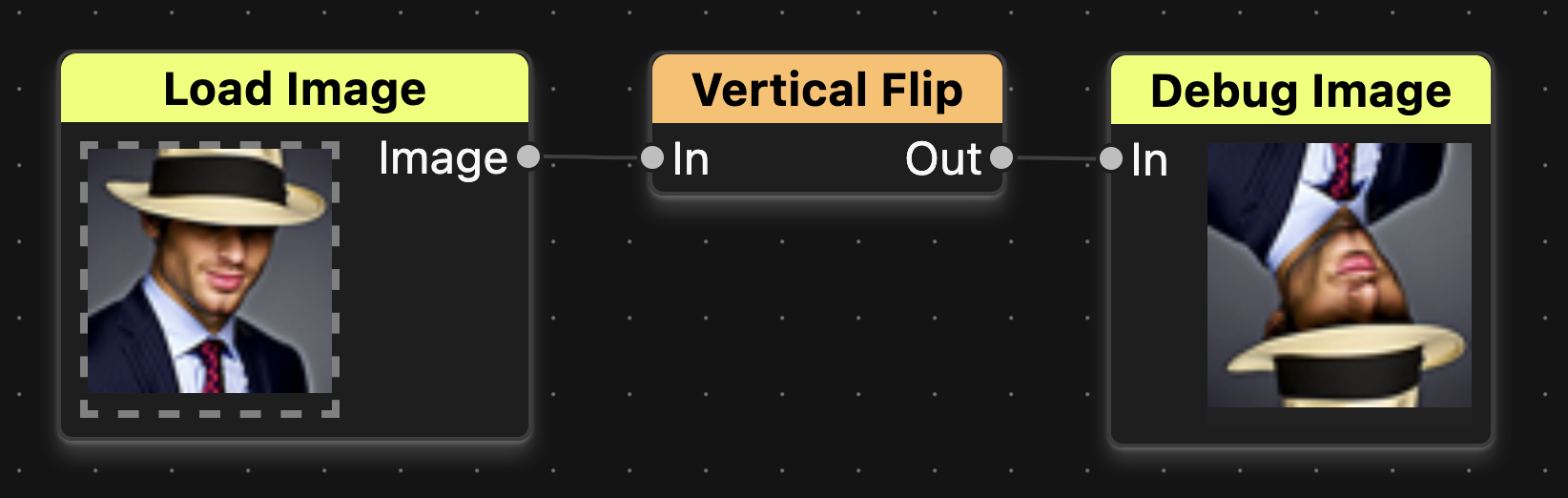
Flips the input image vertically
Linear Interpolate
| Inputs | Outputs |
|---|---|
Image: Image | Out: Image |
Image: Image | |
Alpha: Constant |
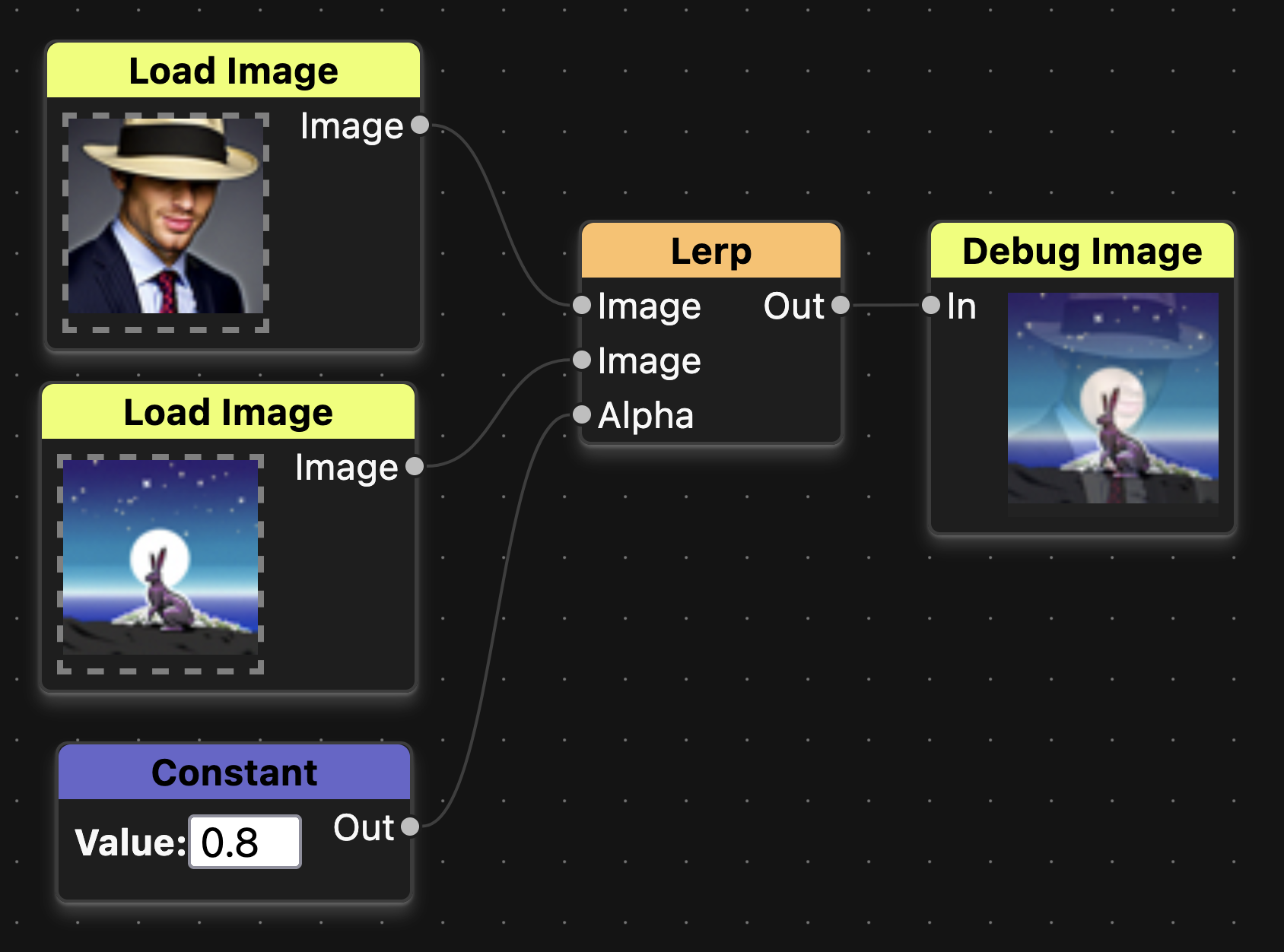
Blends between the two image inputs. If the Alpha parameter is 0, the output is complete the first image. If it is 1, the output is completely the second.
Blend
| Inputs | Outputs |
|---|---|
A: Image | Out: Image |
B: Image |
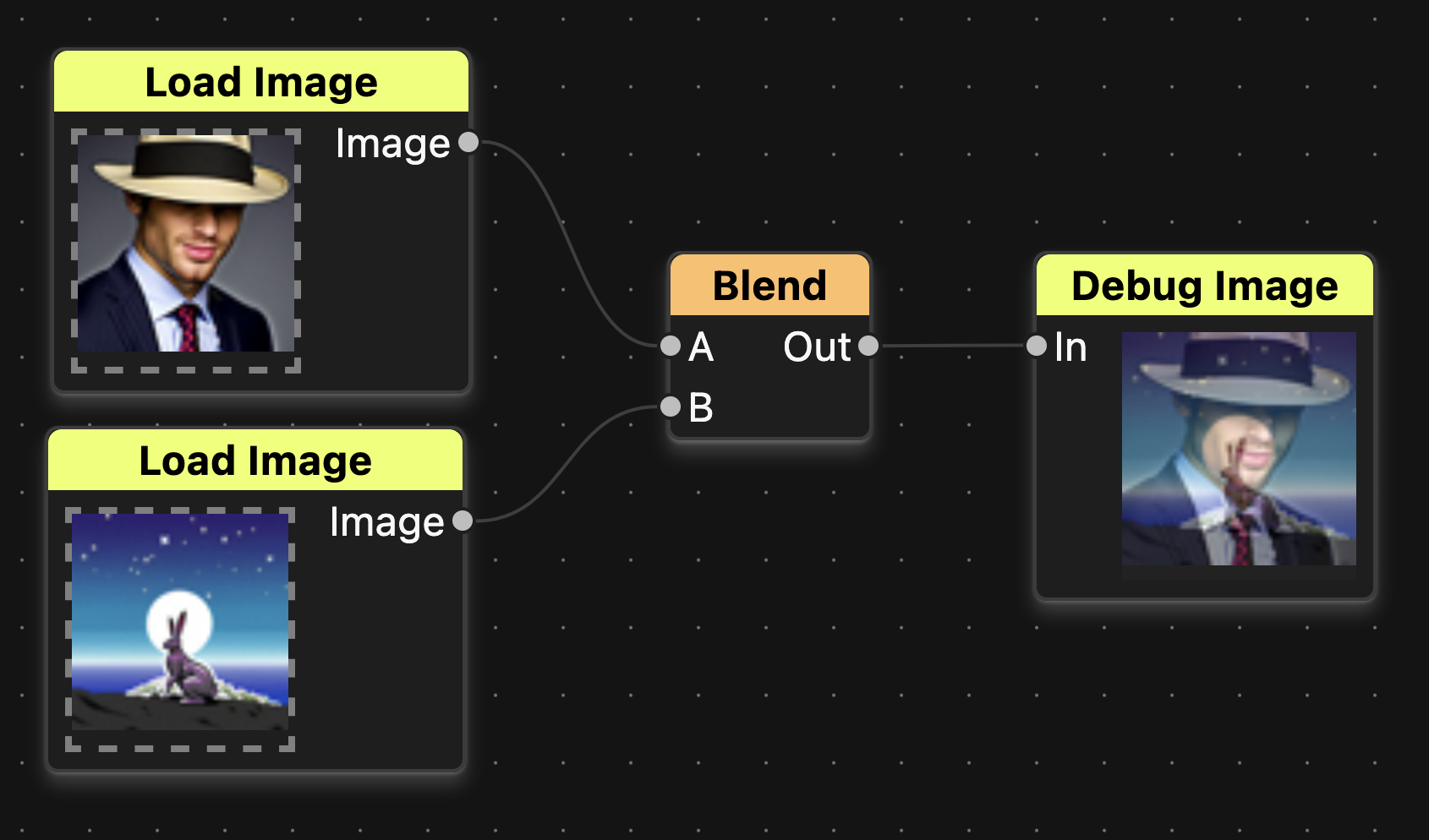
Blend is a simple case of Lerp. It performs the same function, but the alpha is locked to 0.5 (blends each image 50/50).
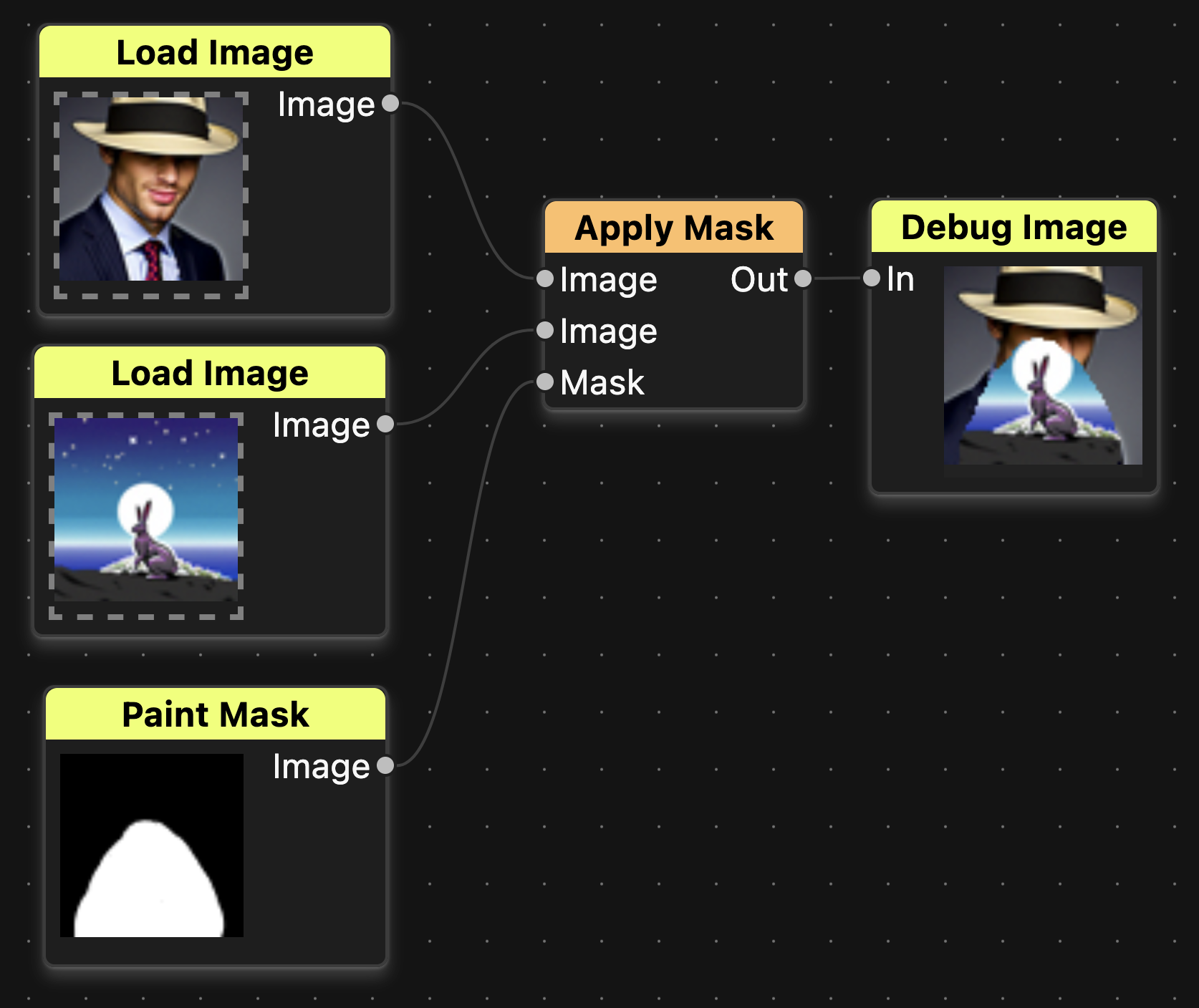
Apply Mask
| Inputs | Outputs |
|---|---|
Image: Image | Out: Image |
Image: Image | |
Mask: Image |
Blends two images using a mask. The first input becomes the black part of the mask, and the second input becomes the white part.
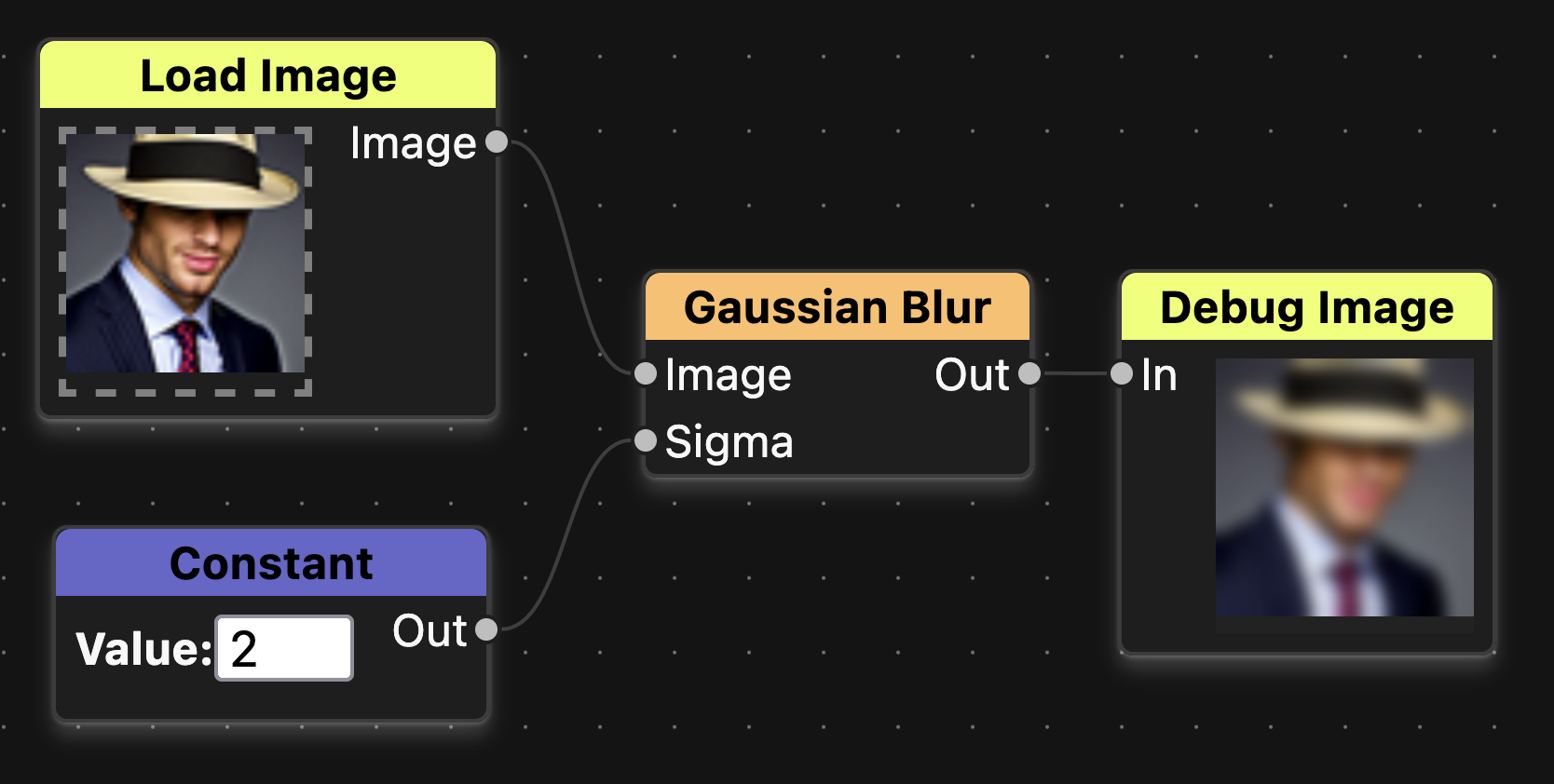
Gaussian Blur
| Inputs | Outputs |
|---|---|
Image: Image | Out: Image |
Sigma: Constant |
Blurs an image. The sigma parameter controls the strength of the blur.
Roll Image
| Inputs | Outputs |
|---|---|
Image: Image | Out: Image |
X: Constant | |
Y: Constant |
Shifts an image by the X and Y input values. The parts of the image that are shifted outside of the image bounds are copied to the other side of the image.
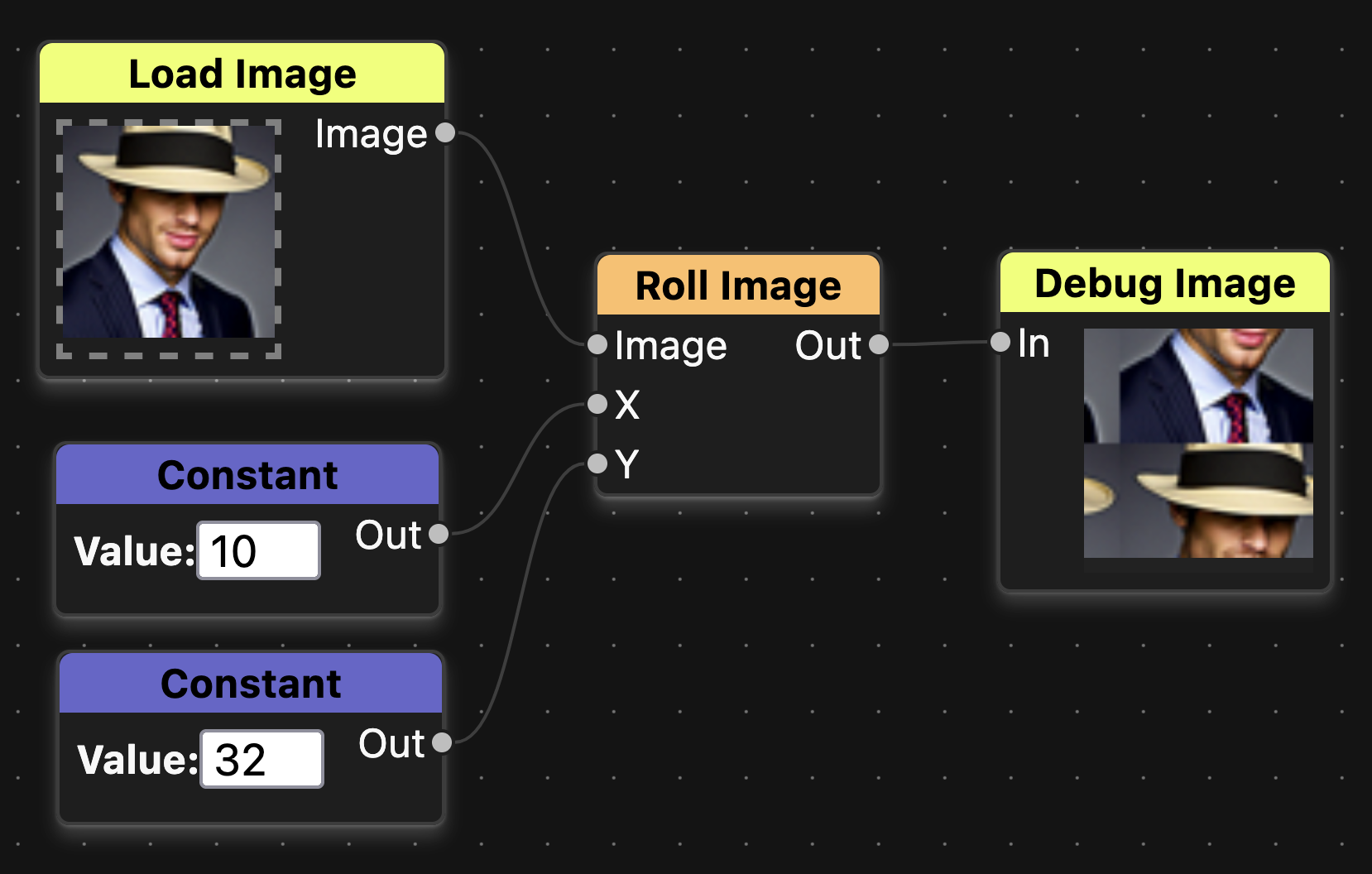
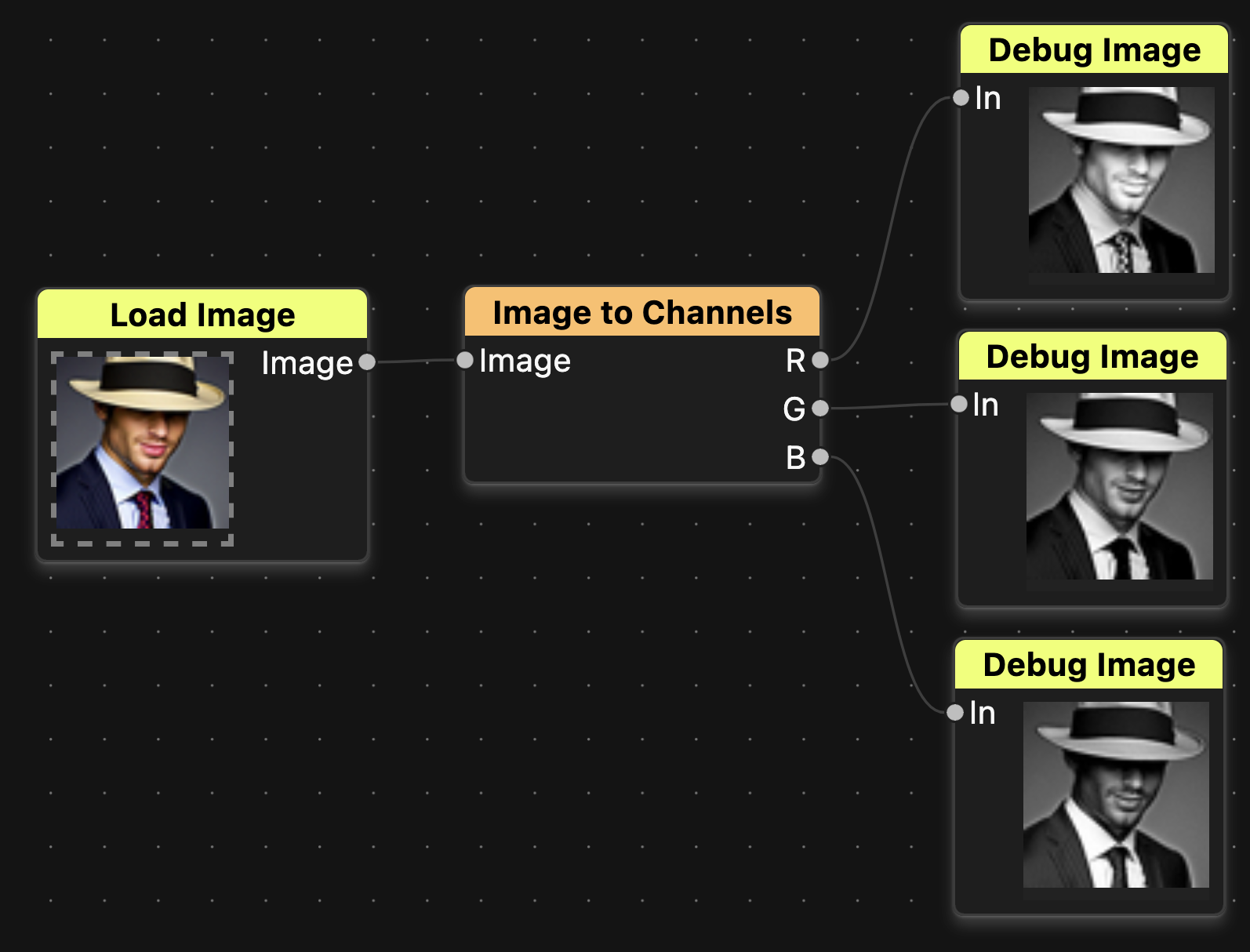
Image to Channels
| Inputs | Outputs |
|---|---|
Image: Image | R: Image |
G: Image | |
B: Image |
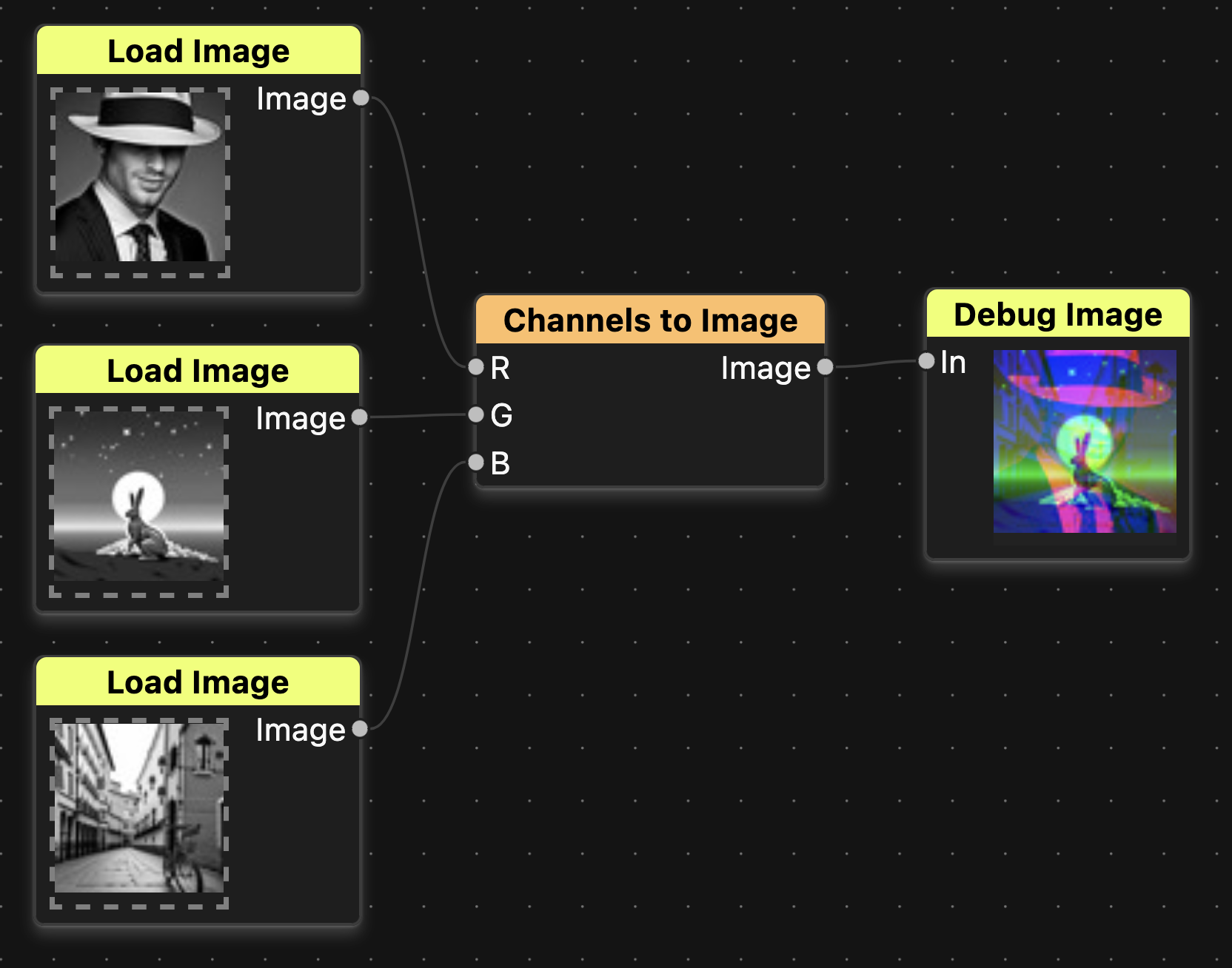
Splits an image into 3 grayscale images, one for each of the R, G, and B channels.
Channels to Image
| Inputs | Outputs |
|---|---|
R: Image | Image: Image |
G: Image | |
B: Image |
Takes the R, G, and B channels of the inputs and combines them into a single image.
Grayscale
| Inputs | Outputs |
|---|---|
Image: Image | Grayscale: Image |
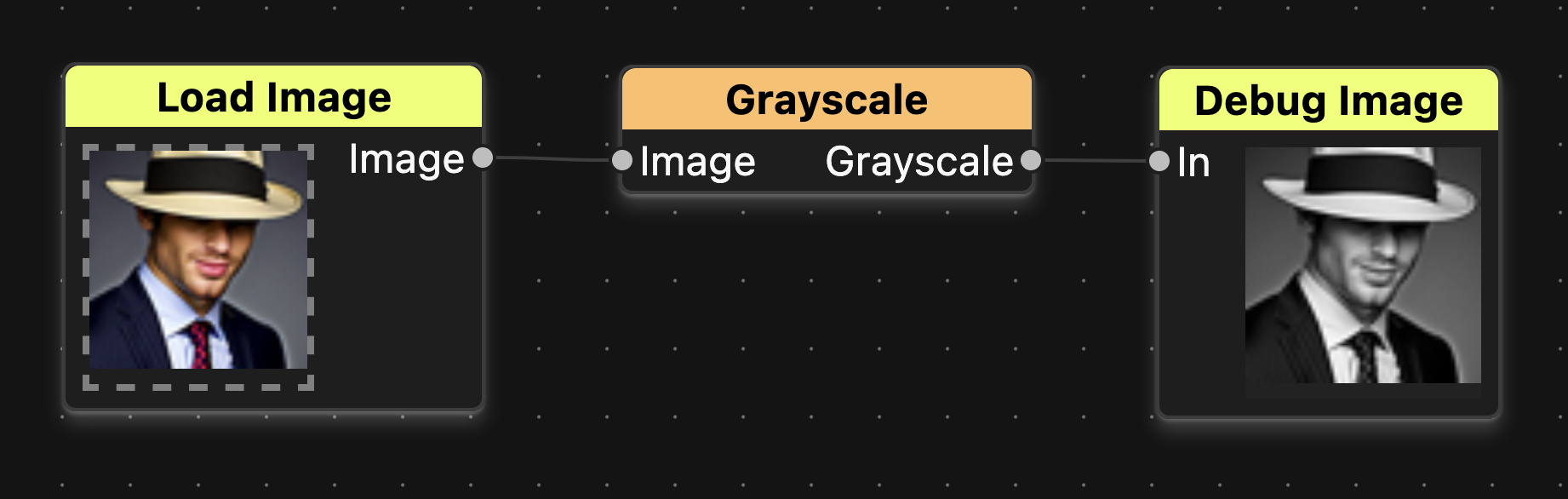
Converts and RGB image into a Grayscale image. A grayscale image is still 3 channels, but each channel has the same values.
Upscale Image
| Inputs | Outputs |
|---|---|
Image: Image | Out: Image |
Prompt: Prompt |
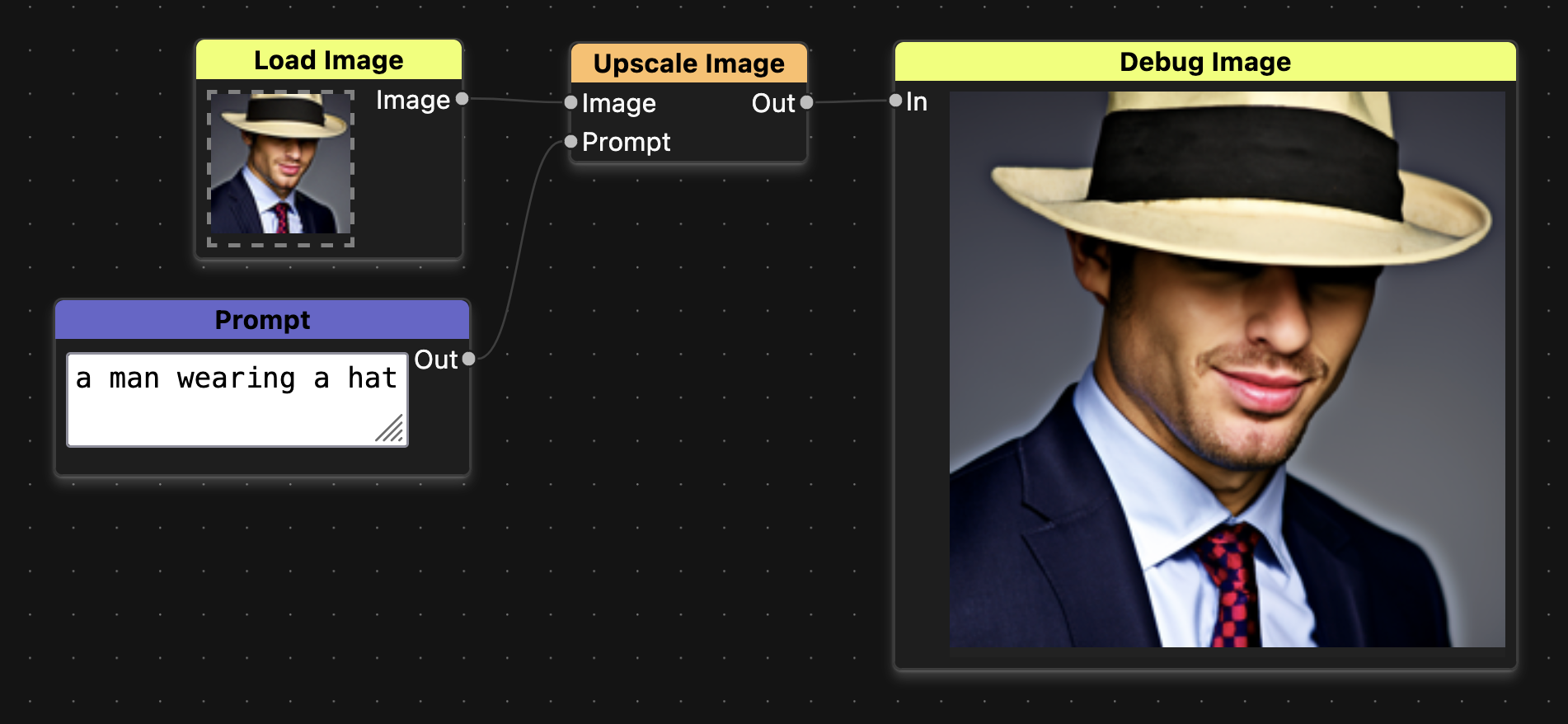
Uses a diffusion model to upscale a low resolution image to a high resolution image.
We recommend only using this at the end of your graph. Running the upscaler can take a long time (~30 seconds).
File
File nodes are useful when doing with file input and output. If you want to load files off of your local machine, you will need a file node.
Load Image
| Inputs | Outputs |
|---|---|
Image: Image |
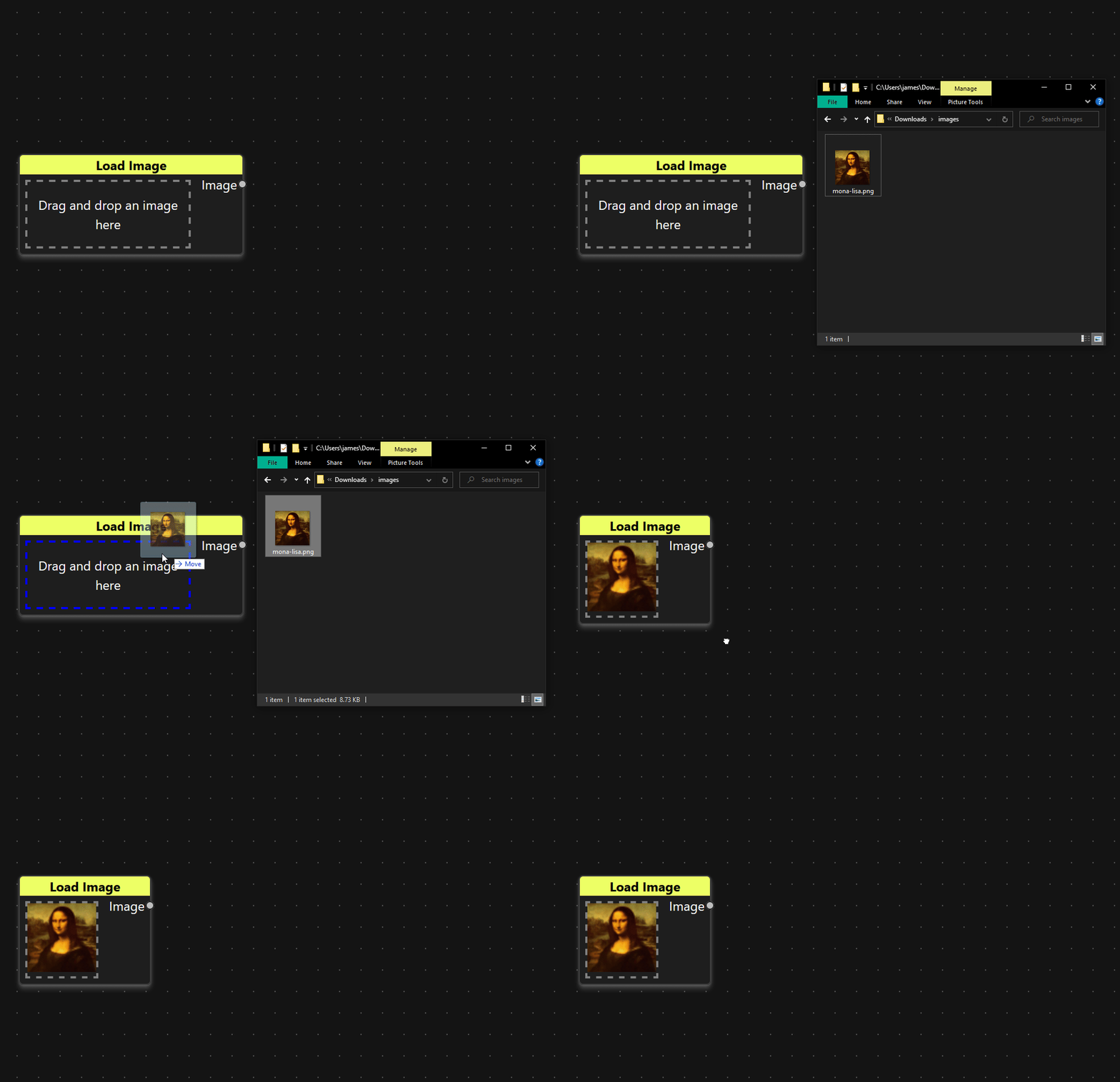
Loads an image from your local machine for use within Noise Pilot. To load the image, drag it from a folder on your computer into the target on the node.
Display Image
| Inputs | Outputs |
|---|---|
Image: Image |
Displays an image in the lower right corner of Noise Pilot. This is useful for visualizing the progress of your creations.
Debug Image
| Inputs | Outputs |
|---|---|
Image: Image |
Similar to Display Image, but this shows the image on the node itself. This is useful when debugging what is happening at various parts of your graph.
Paint Image
| Inputs | Outputs |
|---|---|
Image: Image |
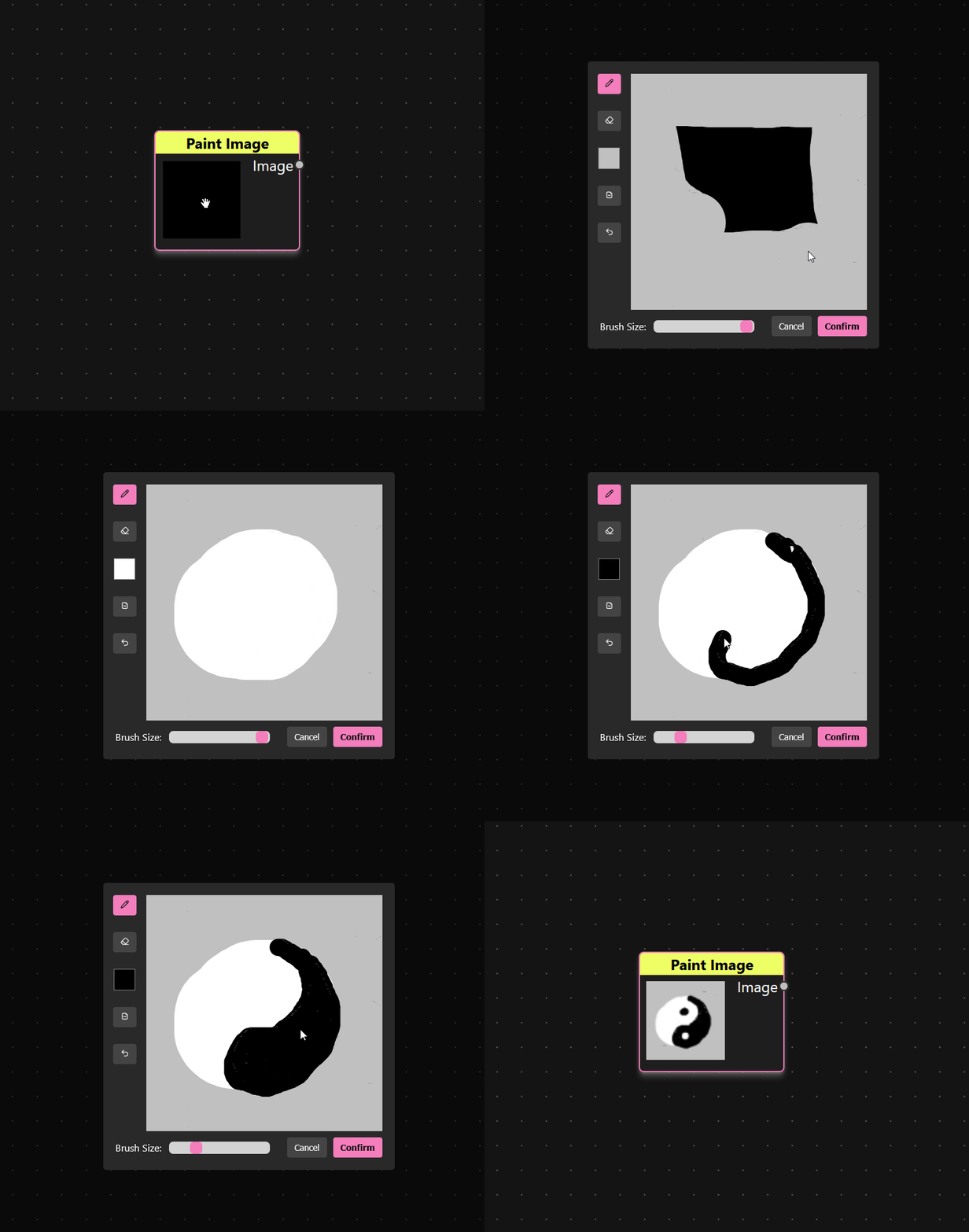
Simple painting tool that can be used to draw masks or rough drawings. Double click the node to open the painting interface.
Denoise
The denoise nodes perform functions related to the denoising process. These are essential for utilizing the diffusion model. See Iterative Denoise for more information on how the denoising process works.
Current Estimate
| Inputs | Outputs |
|---|---|
Image: Image |
Outputs the current estimated image for a denoising process. This is necessary for doing noise to image diffusion. Iterative diffusion is a looping process that contually refines an image by taking noise away, and this node represents the current estimated image.
Estimate Noise
| Inputs | Outputs |
|---|---|
Image: Image | Noise: Image |
Prompt: Prompt | |
CFG Scale: Scalar (optional) |
This node calls the diffusion model which predicts the current noise in the image. The Image input should contain a noisy image, and the Prompt input instructs the diffusion model how to predict noise. The output is a noise estimate.
The optional CFG Scale input controls the strength of classifier-free guidance. Higher values produce images that more closely match the prompt, while lower values allow more variation. If not connected, the default value of 7 is used.
Remove Noise
| Inputs | Outputs |
|---|---|
Image: Image | Image: Image |
Noise: Image |
Given the current estimate image, and an estimate of the noise within that image, attempt to subtract some of that noise from the estimate. This produces an image that is slightly closer to the desired image.
Next Estimate
| Inputs | Outputs |
|---|---|
Image: Image |
Use this at the end of an iterative loop, to set the Current Estimate for the next time the loop runs. This node “connects” to Current Estimate behind the scenes, so you can think of this node as pushing the input value into the Current Estimate node.
Inject Noise
| Inputs | Outputs |
|---|---|
Image: Image | Out: Image |
t: Constant |
Sometimes it is useful to add noise to an image. Use this node if you are adding noise outside of an iterative denoise process. The t parameter will scale how much noise is being added, based on the expectations of the diffusion model.
For instance, if you want to only partially diffuse an image, you can add noise for some t value, and then start the denoise process at that same t value.
Inject Current Noise
| Inputs | Outputs |
|---|---|
Image: Image | Out: Image |
If you want to inject noise to an image during an iterative denoise loop, use this variable. It will use the current t value for the stage of iteration that you are on.
Group
Group nodes are nodes that contain their own graph. See more details of how to use them on the Groups page.
Every workspace comes with one group node pre-defined to handle iterative denoise for the workspace.
Iterative Denoise
| Inputs | Outputs |
|---|---|
Initial Image: Image | Result: Image |
t_start: Constant | |
t_end: Constant | |
Prompt: Prompt |
The Intial Image parameter represents the starting point for the process. This is the first point of the walk through the diffusion process.
t_start and t_end represent the starting and stopping points for the walk, ranging from 0 to 32. If t_end is left blank, it will walk all the way to the end.
Prompt is a parameter (input) node that lets you input a parameter into the diffusion process.
Inside of the Iterative Denoise group is the following graph
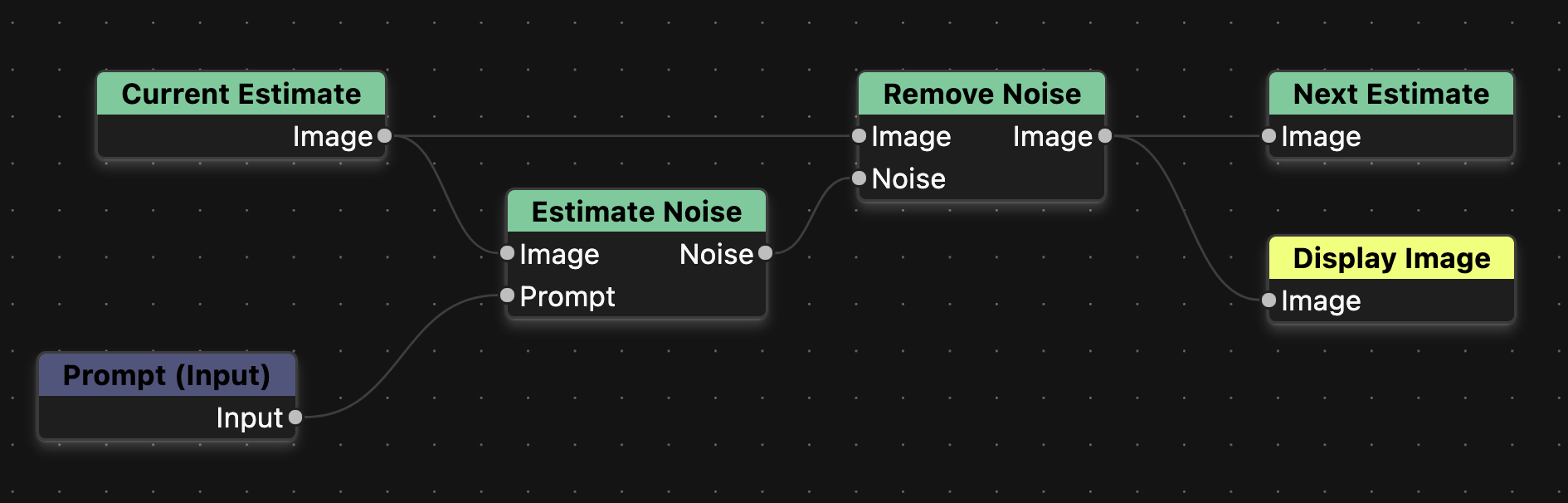
For more details on how this graph works and how it maps to the diffusion process, see the Iterative Denoise page.