Interface Overview
This is an overview of the major parts of the Noise Pilot interface. Noise Pilot files are called workspaces, and when you load a workspace you will be shown the following user interface (annotated).
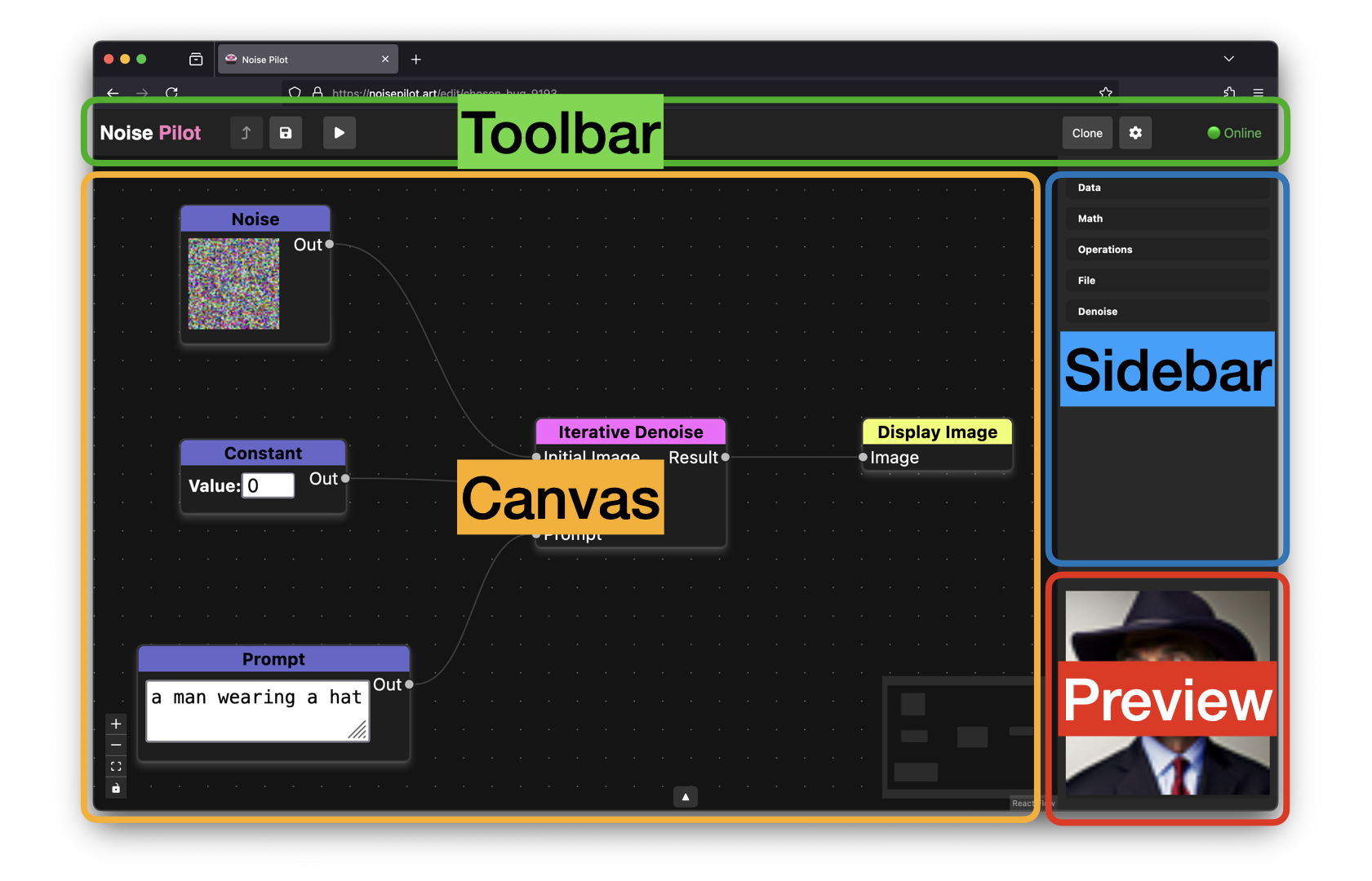
The interface has 4 major parts: Canvas, Sidebar, Preview, and the Toolbar. There is also an image gallery.
Canvas
Shows all of the nodes in the graph of the current workspace. This is where you will add and connect nodes to change the way that Noise Pilot generates images.
At the bottom of the canvas is a small button that will open the gallery view.
Panning and Zooming
Click and drag anywhere on the canvas to move the canvas view.
Scroll your mouse wheel or trackpad to zoom the canvas in and out. You can also use the + and - buttons in the lower left corner of the canvas.
Select Node
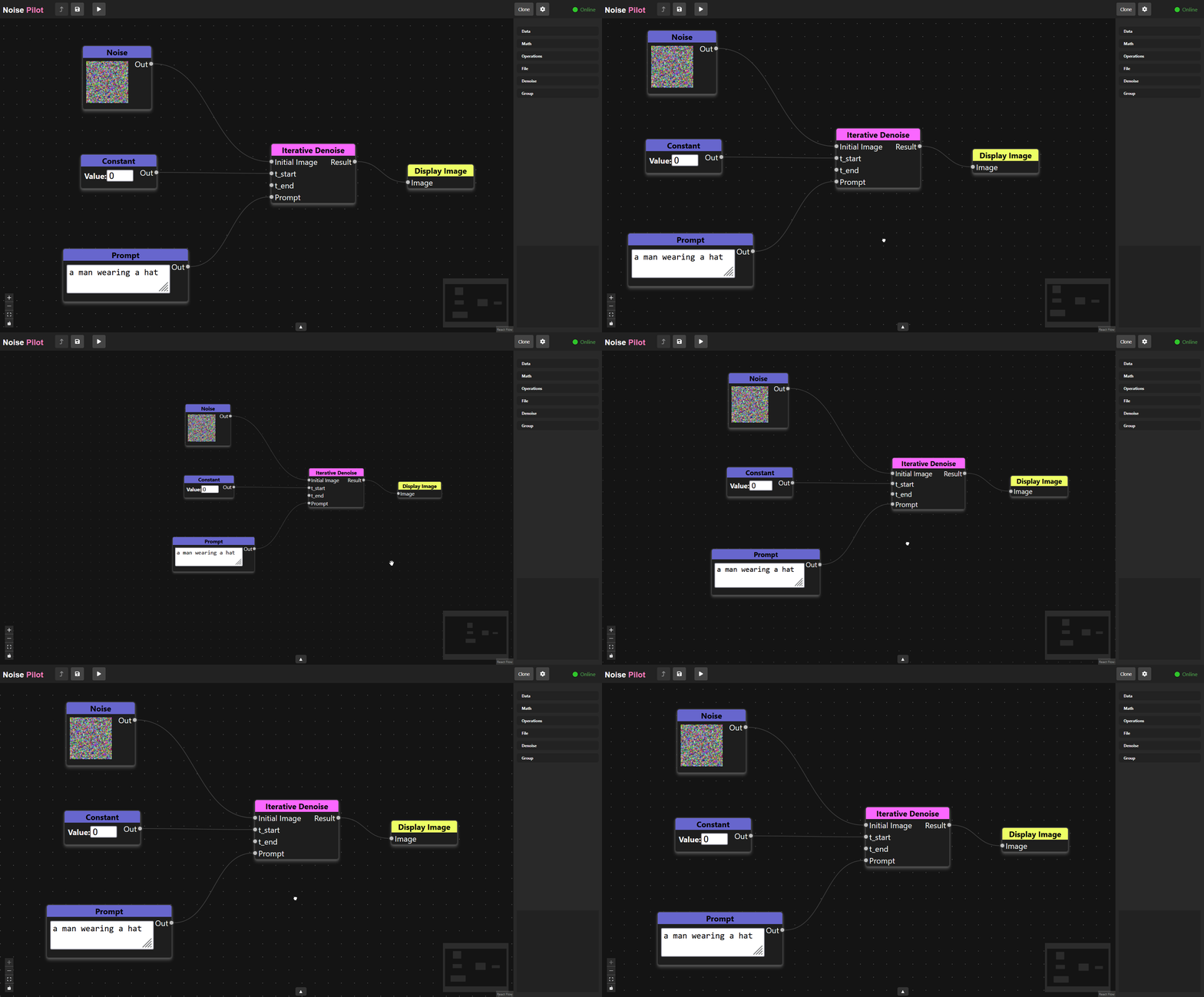
Clicking on nodes will select them. Control click to select multiple nodes.
Select Edge
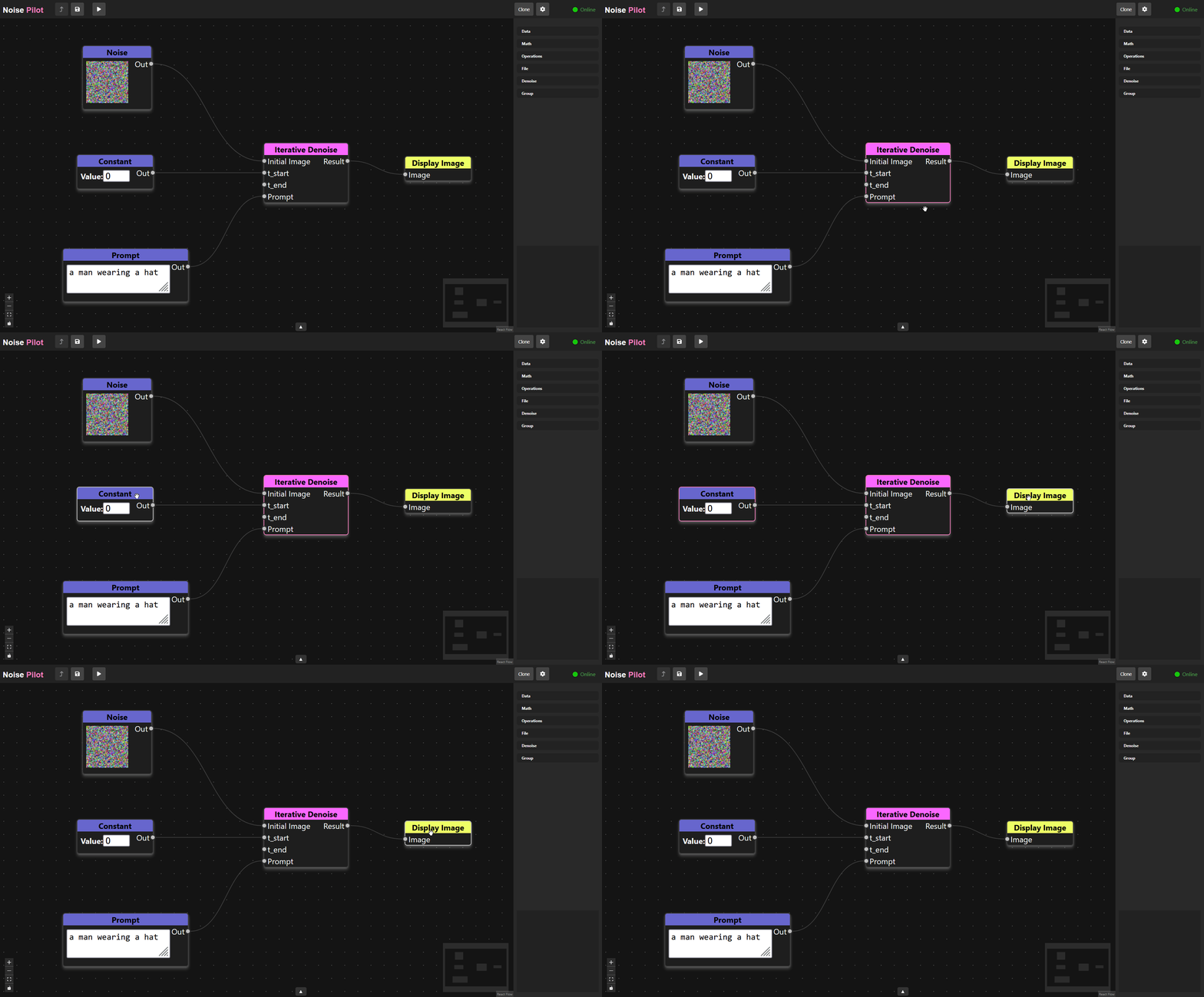
Click on edges to select them.
Drag Node
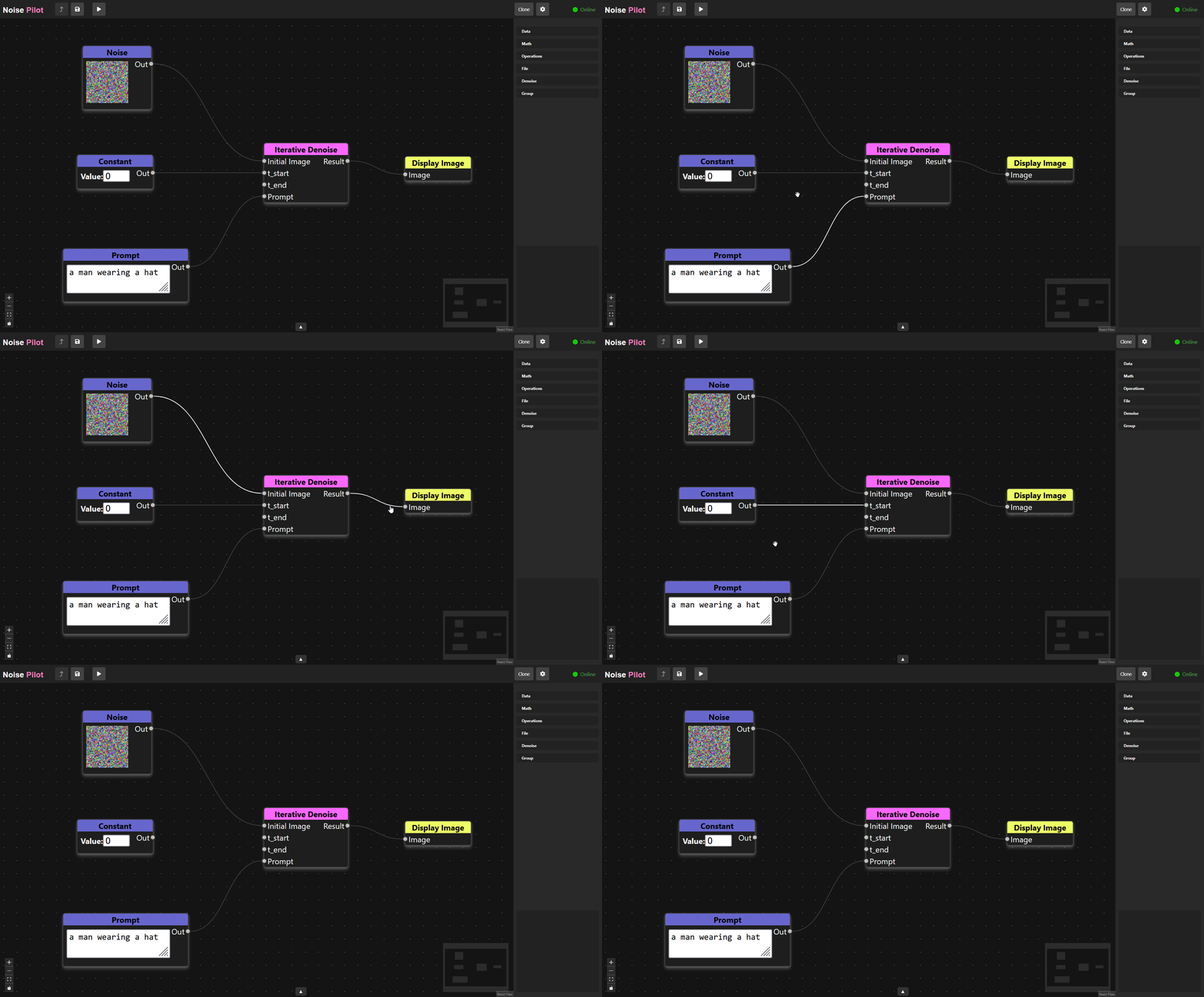
Click and drag any node to move that node around the canvas.
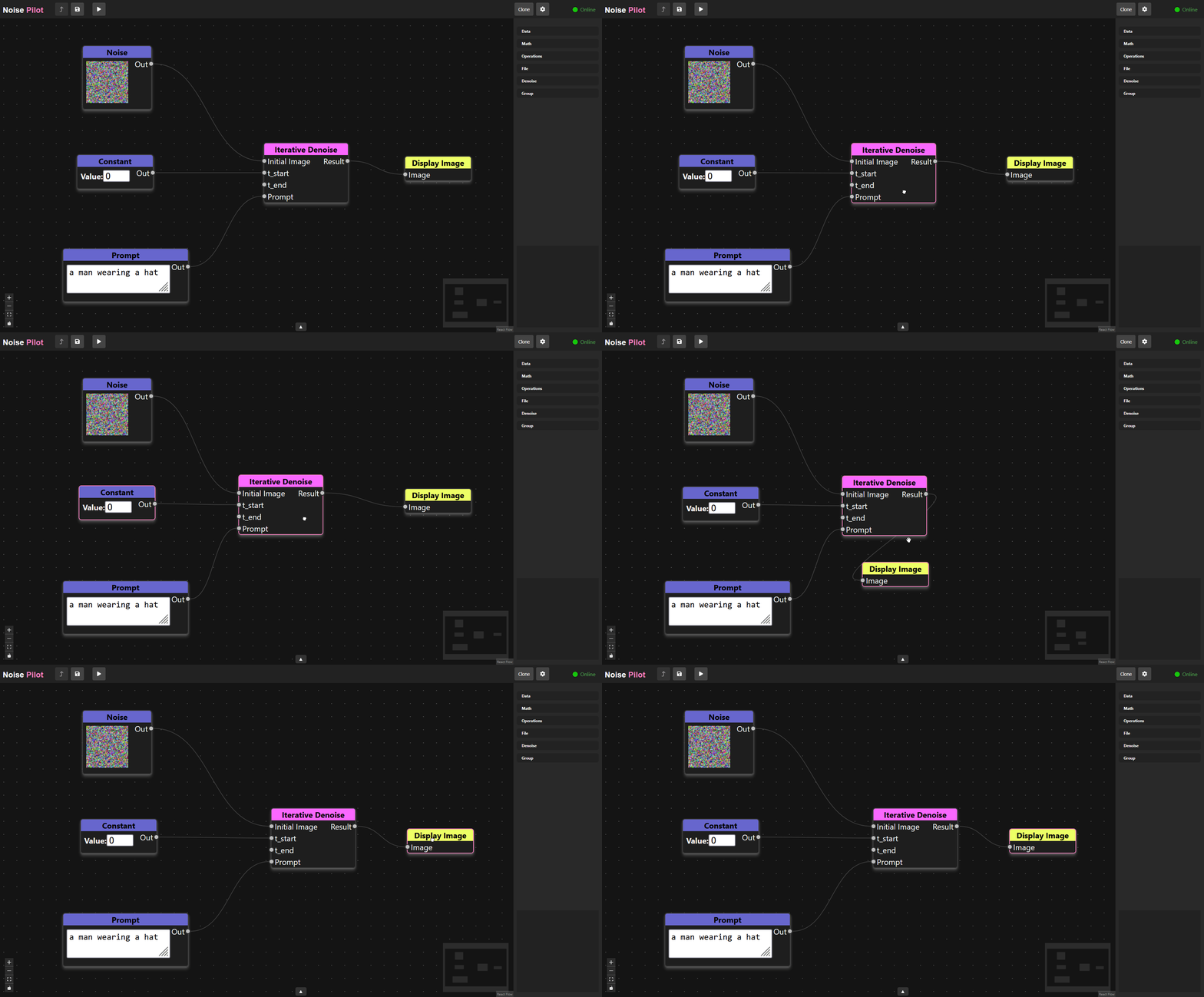
Connecting Nodes
You connect two nodes with an edge between their handles. Click and drag a handle to start creating an edge, drop the other end of the edge on a handle to connect the two nodes.
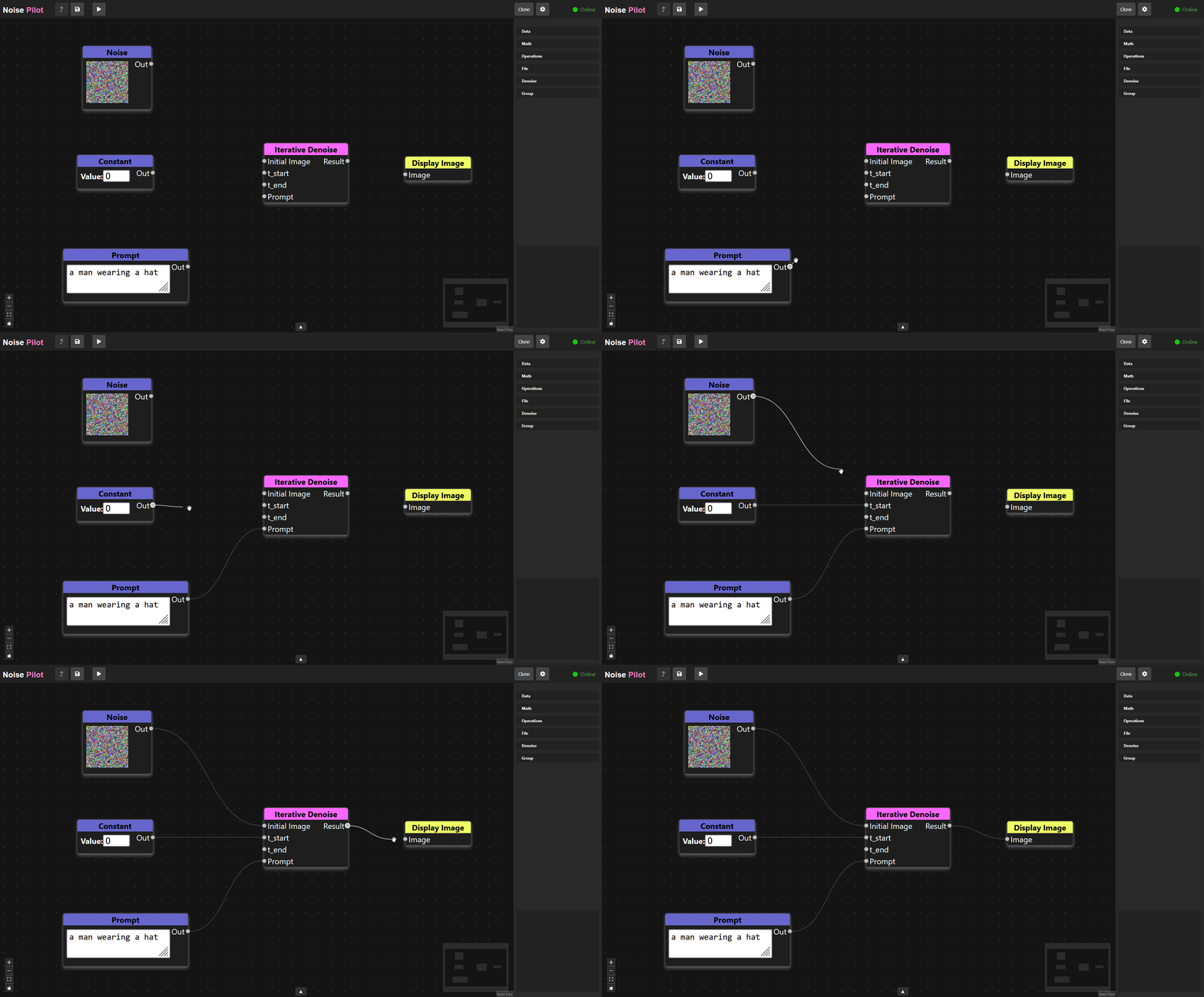
Deleting
You can delete any selected node or edge by pressing Backspace or Delete
Sidebar
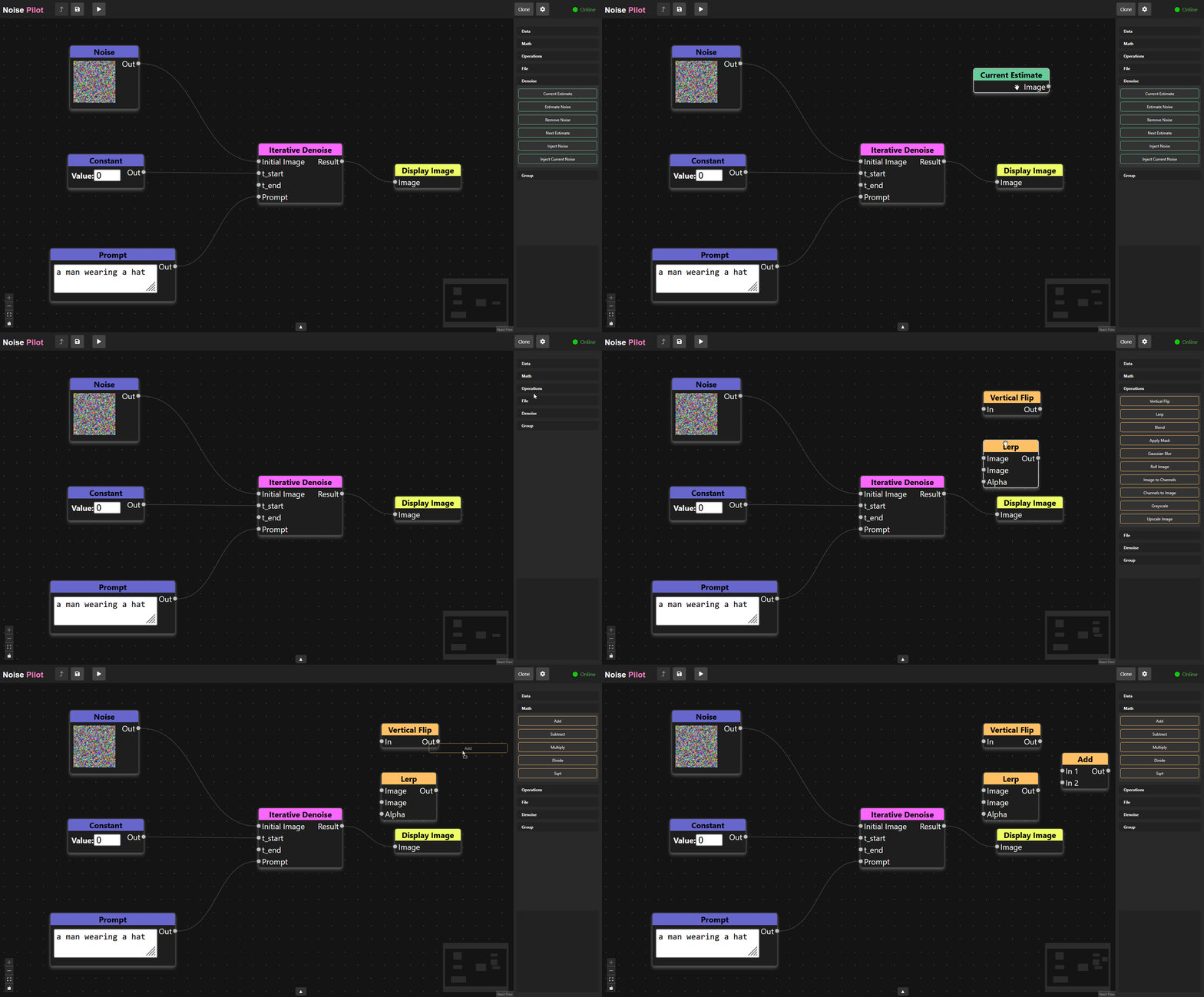
The sidebar contains a list of all the nodes you can add to a Noise Pilot workspace. Drag the button for the node that you want into the canvas to add it. The categories can be opened and closed by clicking on them. Under the groups category, you can create new group nodes. (See Group Nodes for more info).
Preview
This will show preview images and progress bars for any Display Image nodes that you have in the graph. Adding display image nodes is a great way to visualize the progress of your workspace as it runs on the server. Iterative Denoise groups will show their progress as a progress bar.

Gallery
This will show a history of all past Display Image actions. The gallery has some options of it’s own.
To select an image in the gallery, click on the image. You can also control click and shift click to select multiple images.
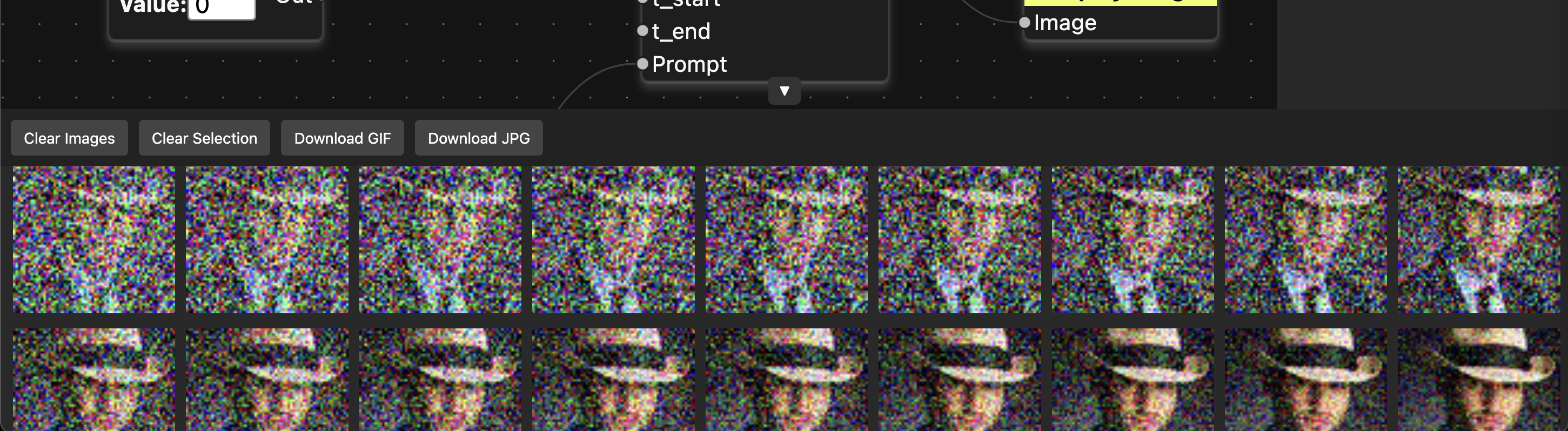
Clear Images
Removes all images from the gallery.
Clear Selection
Deselects any selected images.
Download GIF
Gather all of the selected images into a GIF file and download it to your local machine
Download JPG
Download each selected image individually as a JPG file.
Toolbar

The toolbar gives you access to a few commonly used features.
Previous Graph

If you open a group node, this button allows you to go back to the graph you were previously looking at.
Save

Manually save the workspace. Note, most actions in Noise Pilot will auto save!
Undo

Undo the last action.
Redo

Redo the next action, if you have previous used Undo.
Delete

Delete the currently selected node(s) or edge(s).
Duplicate

Duplicate the currently selected node(s).
Run Graph

Sends the current version of the workspace to the server, and starts to receive updates as they come in.
Clone
This button will create a copy of the current workspace as a new workspace, and navigate to that workspace.
Settings

Open the workspace settings UI.
Workspace Settings
You can make a few changes to how the workspace works in the settings UI.
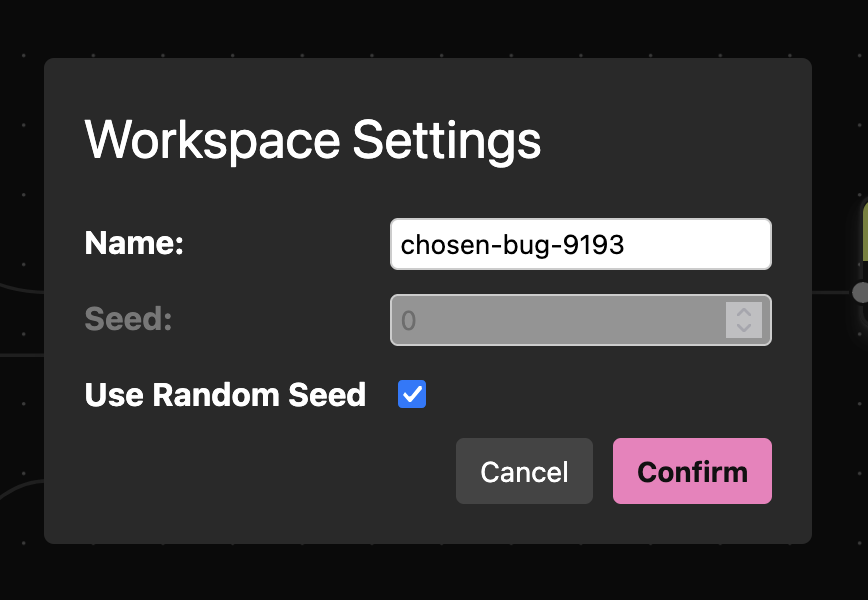
Name
This is the name that is displayed in your dashboard on the Noise Pilot homepage.
Seed
Setting the seed manually will prevent Noise Pilot from generating a different image every time you run it. So if you want to save and work on a specific output, disable random seed and set this number to anything.
Use Random Seed
If this is set, the seed will be randomized every time you run.
Context Menu
Right clicking on nodes will bring up a context menu with various options that apply to that node.
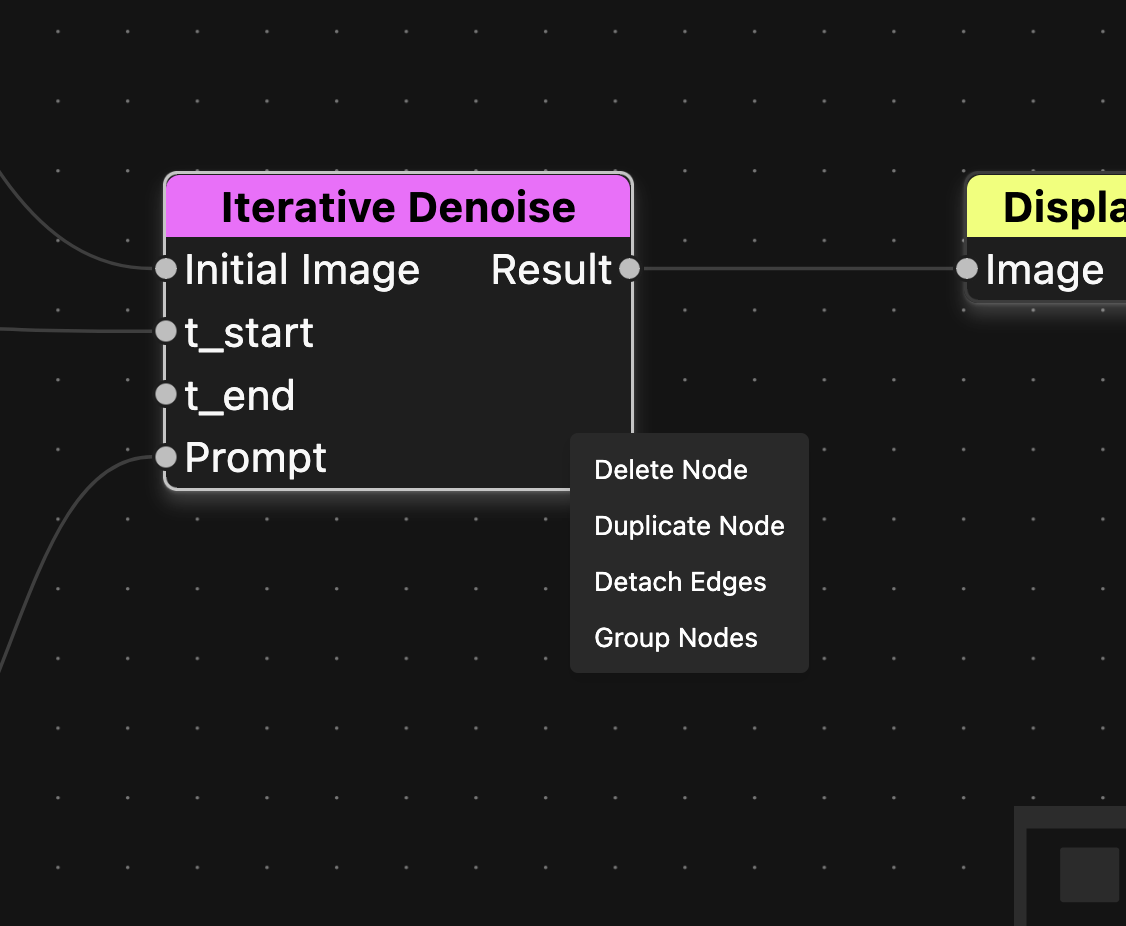
Delete Node
Deletes the clicked node.
Duplicate Node
Duplicates the clicked node.
Detach Edges
Remove all edges from the clicked node.
Group Nodes
Turns all currently selected nodes into a group node. This will pop up the Create Group UI.
Shortcuts
Noise Pilot has several built in shortcuts/hotkeys to help with editing your workspace. For macOS users, replace the control key with the command key.
| Shortcut | Description |
|---|---|
| Delete/Backspace | Delete the currently selected node |
| Control Click | Select multiple nodes |
| Control Z | Undo |
| Control Shift Z | Redo |
| Control C | Copy |
| Control V | Paste |
| Shift D | Duplicate current node |